1
Open Integrations
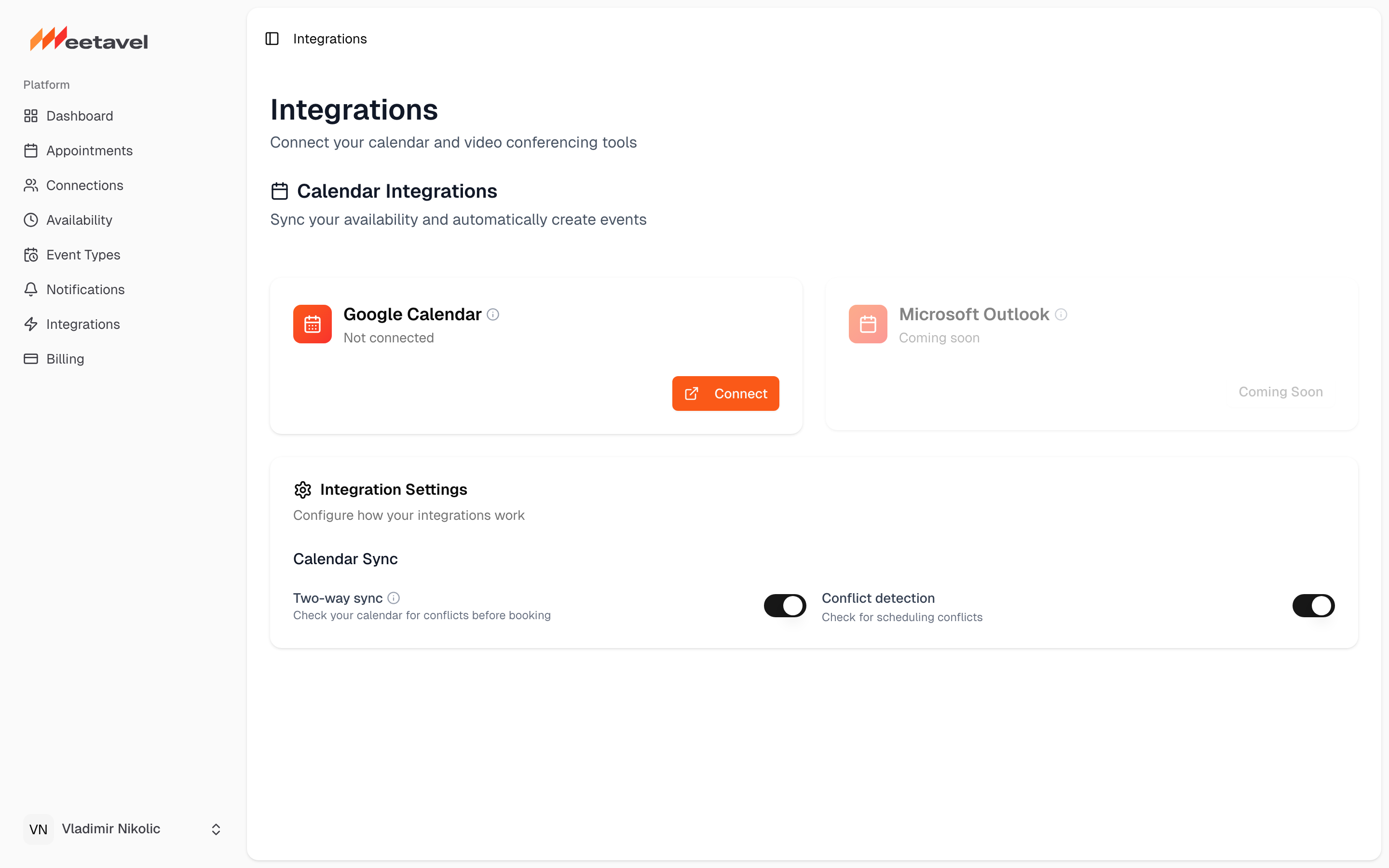
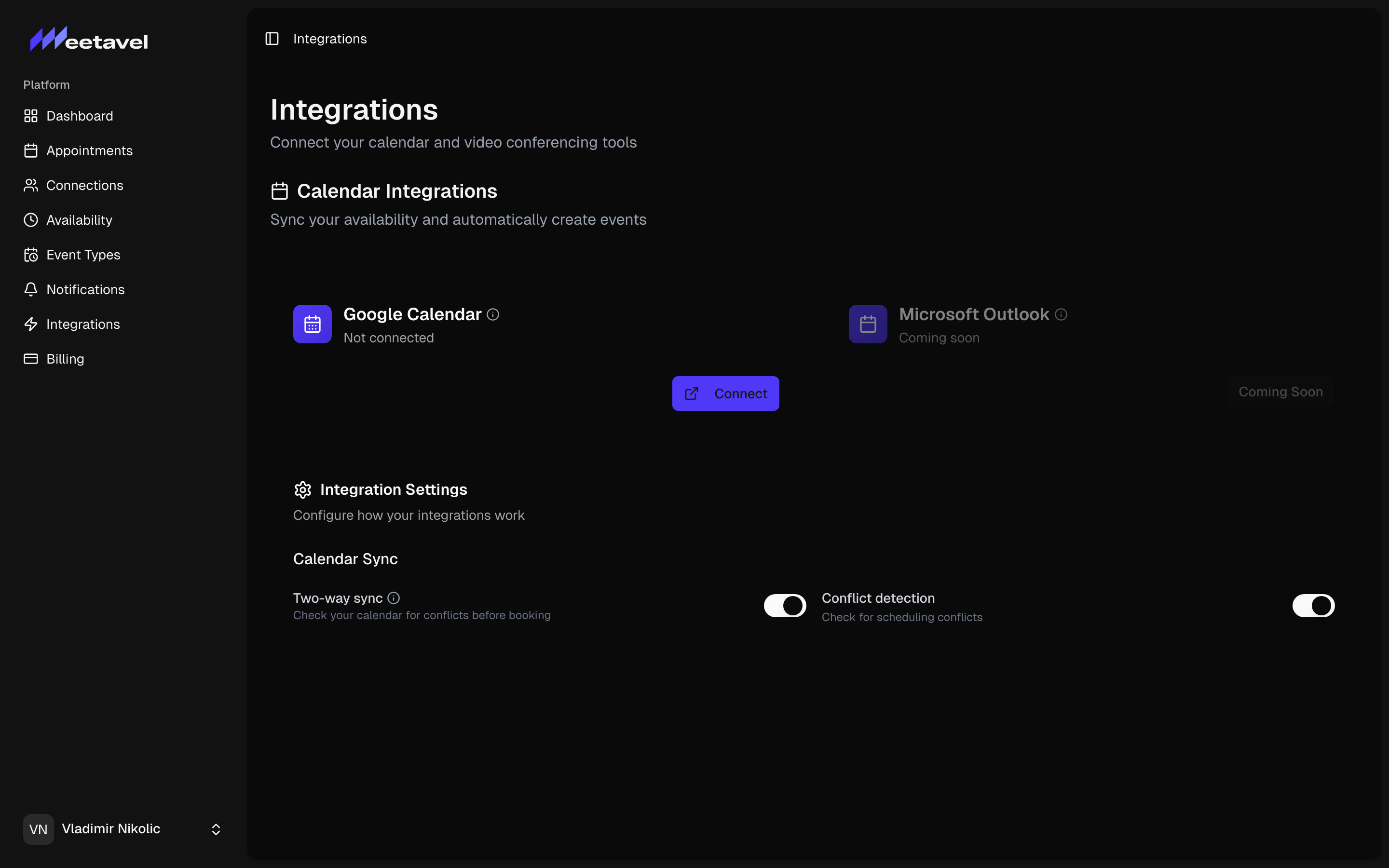
In your Meetavel dashboard sidebar, click Integrations. You'll see a card for Google Calendar.
meetavel.com
OAuth once. Every booking gets a Meet link.
In your Meetavel dashboard sidebar, click Integrations. You'll see a card for Google Calendar.
Click the "Connect" button on the Google Calendar card. You'll be redirected to Google to authorize.
Google asks for permission to read your busy times and create events. We only request the minimum scopes needed: calendar.readonly and calendar.events. We never read meeting contents or attendee details.
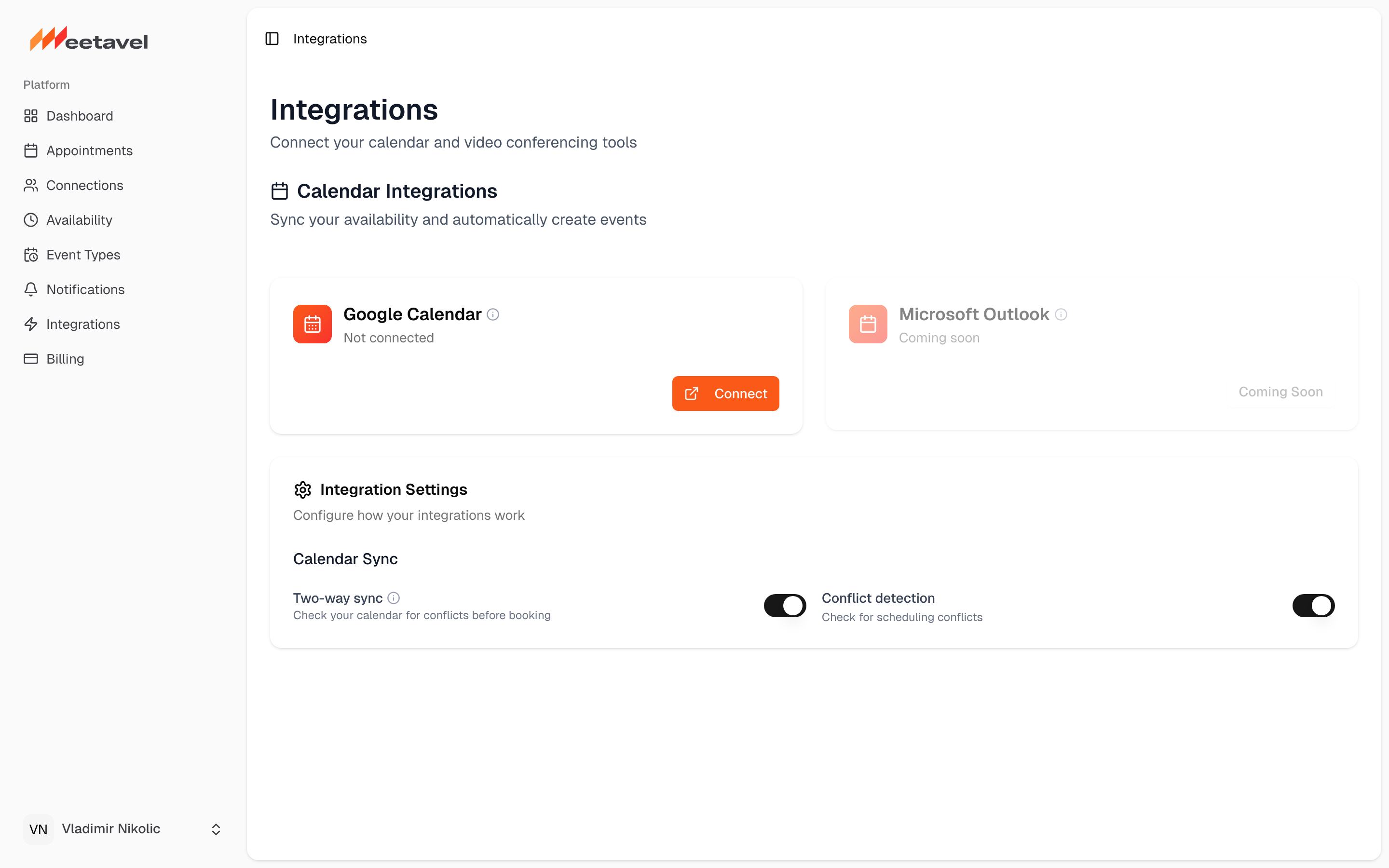
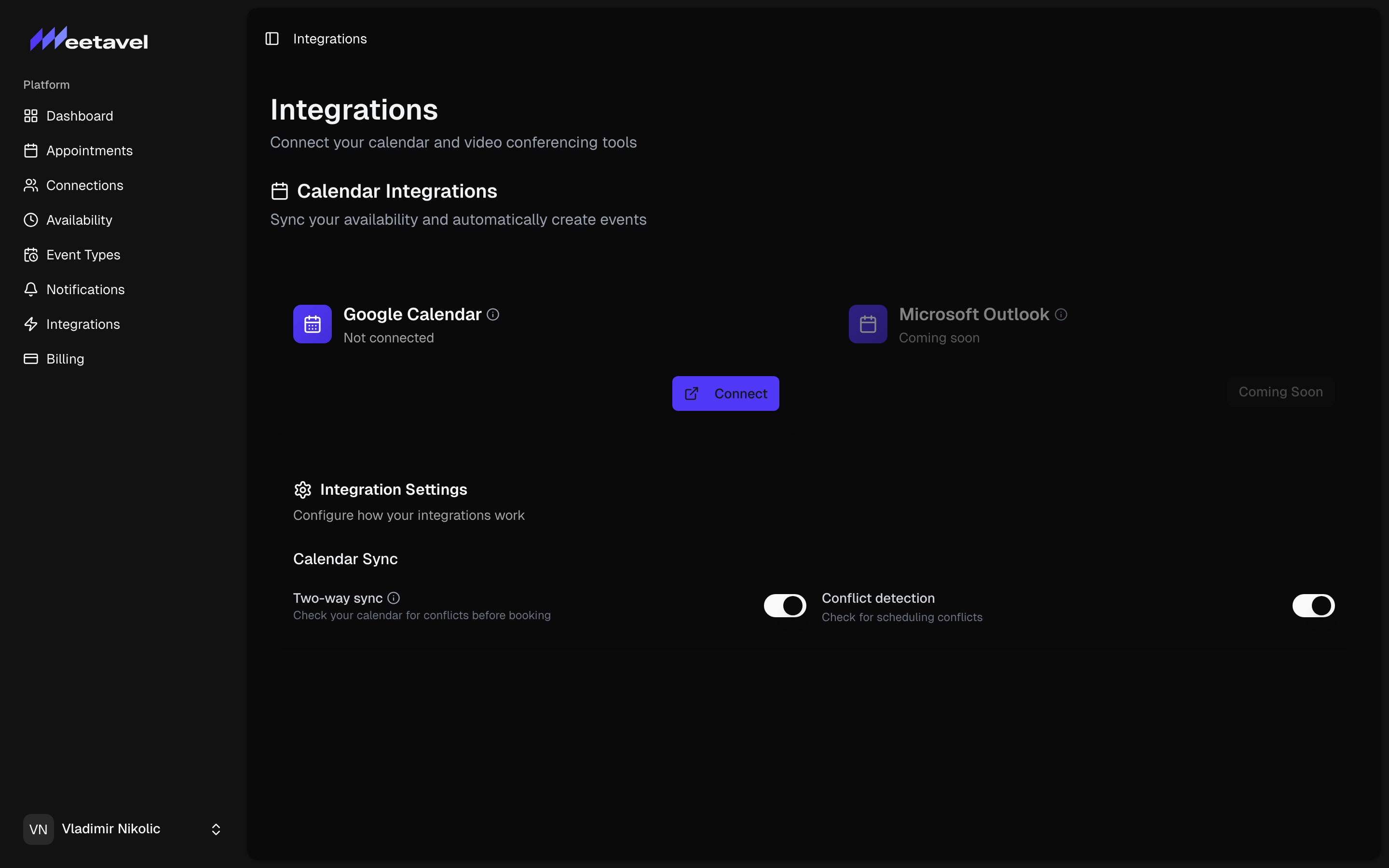
Back in Meetavel, the card now says "Connected as your-email@gmail.com". Two-way sync is enabled by default — toggle Conflict Detection on if you want us to respect external calendar entries when generating slots.
Visit your own booking page (meetavel.com/v/{your-username}), pick a slot, and book it as a guest. Within seconds, the event lands on your Google Calendar with a real Google Meet link.
Today Meetavel only supports Google Calendar. Outlook and Microsoft Teams are on the roadmap. If they're a hard requirement, let us know — we prioritize integrations by demand.